
Set Up Your BuzzCard

You’re just a few taps away from accessing campus. Follow the six steps below to enable your BuzzCard. If you’ve already submitted a photo, you can skip directly to step 2.

How to Set Up Your BuzzCard

Step 1:

Find a fitting photo for your BuzzCard and submit it online for approval.

How to Submit a Photo
Step 2:

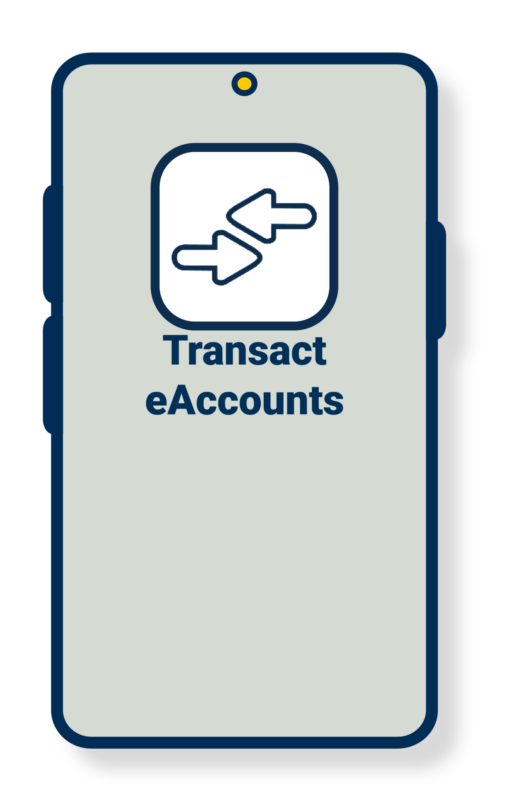
Install the Transact eAccounts mobile app.

Download the App
Step 3:

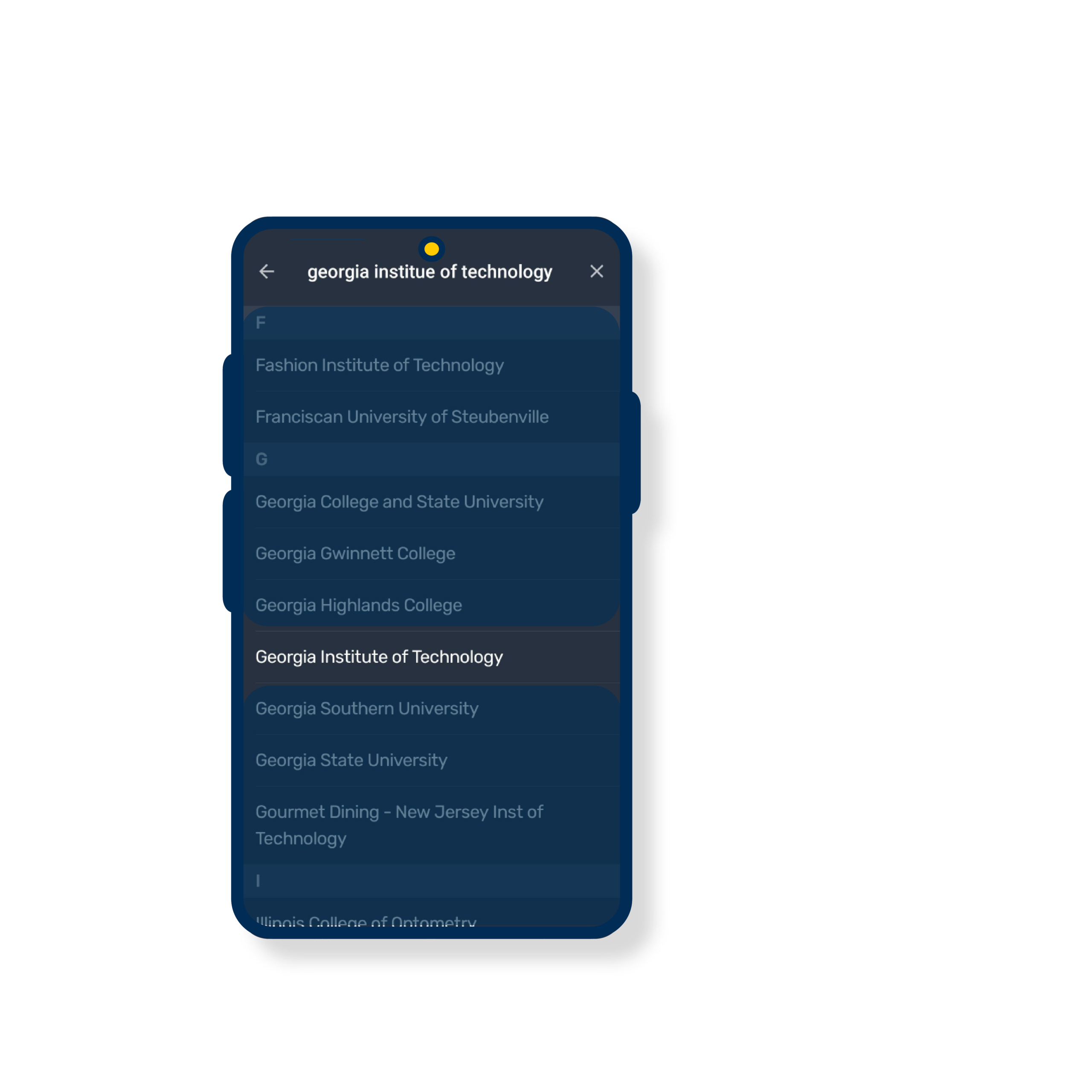
Select Georgia Institute of Technology and login using single sign on.
Step 4:

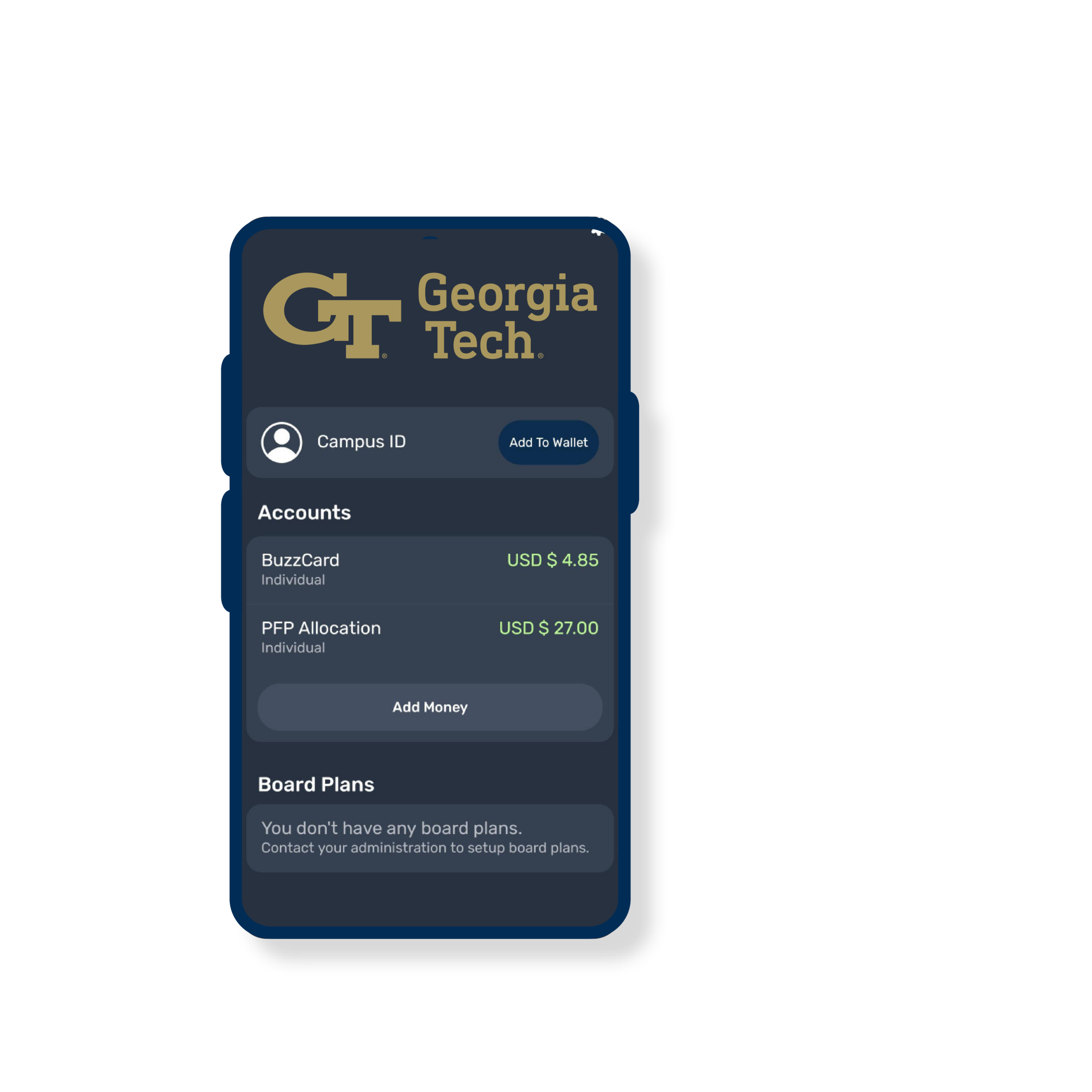
Click “Add to Wallet” to add campus ID to digital wallet.
1
2
3
4
Timeline step image Timeline step image Timeline step image Timeline step image
Step 1:

Find a fitting photo for your BuzzCard and submit it online for approval.

How to Submit a Photo
Step 2:

Install the Transact eAccounts mobile app.

Download the App
Step 3:

Select Georgia Institute of Technology and login using single sign on.

Step 4:

Click “Add to Wallet” to add campus ID to digital wallet.
Are you a returning student?

The digital BuzzCard is currently available only to incoming students, faculty, and staff. Returning students will have the opportunity to transition to a digital BuzzCard later this fall. Please note that you cannot have both a physical BuzzCard and a digital BuzzCard active at the same time.

Need technical assistance or need device-specific guidance? Start here.
Information for Every BuzzCard User

Getting Started with Your BuzzCard

Everything you need to know to activate and begin using your BuzzCard.

Please review the setup & system requirements based on your wallet type.
Apple Wallet
Google Wallet
Samsung Wallet

  • Residence hall access
  • Academic building access
  • Dining and retail purchases
  • Library services
  • Campus event access
  • and many more!

Name information on the BuzzCard comes to us from the university’s core business systems and needs to be updated there. Students should contact the Registrar’s Office. Faculty and staff should contact their HR representative to request updates. Once changes are completed, the updates will sync to the digital BuzzCard on your phone within 48 hours.

Yes, for faculty and staff only. If/when this policy changes, you will be notified via email. Students cannot retain both a physical and digital BuzzCard. GTRI employees need to follow GTRI business procedure for GTRI credentials.

If you’re having trouble downloading your digital BuzzCard, don’t worry—most issues can be resolved with a few quick checks: 

Common Troubleshooting Steps 

  1. Is your device software up to date?
    Make sure your phone’s operating system (iOS or Android) is fully updated. Older versions may not support mobile wallet features.
  2. Do you have enough storage space?
    Check that your device has enough available storage to download theTransact eAccounts app and add your BuzzCard to your wallet. 
  3. Have you downloaded the correct app?
    Be sure you’ve installed the Transact eAccounts mobile app and selected Georgia Institute of Technology when logging in. 
  4. Did you accept the Terms & Conditions to use your wallet?
    You’ll need to accept the wallet terms and conditions before adding your digital BuzzCard. 
  5. Is your device compatible?
    Not all devices support digital wallets. Double-check that your phone is compatible with Apple Wallet, Google Wallet, or Samsung Wallet.
  6. Are you logged in with your Georgia Tech account?
    Make sure you are using your official Georgia Tech login credentials when accessing the app.

If you have any of the iPhone XS, XS Max or XR models, yes. Express Mode with power reserve is available for up to five hours when your phone needs to be charged.  (For more details, see https://support.apple.com/en-us/HT208965.) Other iPhone models (iPhone 8 and earlier) do not offer this feature. 

For eligible Samsung Galaxy phones and watches, yes. Users can make up to 15 transactions within 24 hours after their phone or watch powers off due to low battery. 

If your office, program, lab, facility, or service uses BuzzCards for more than standard building access, we’d like to hear from you. Sharing these specialized use cases helps us review compatibility and ensure a successful transition to the Digital BuzzCard for students, faculty, and staff.

Managing Your Device & Digital Wallet

Questions about phones, smartwatches, and moving your BuzzCard between devices.

Please review the setup & system requirements based on your wallet type.
Apple Wallet
Google Wallet
Samsung Wallet

On your device, visit the App Store or Google Play Store and search Transact eAccounts. The store will prompt you to install any required updates.

If you have any of the iPhone XS, XS Max or XR models, yes. Express Mode with power reserve is available for up to five hours when your phone needs to be charged.  (For more details, see https://support.apple.com/en-us/HT208965.) Other iPhone models (iPhone 8 and earlier) do not offer this feature. 

For eligible Samsung Galaxy phones and watches, yes. Users can make up to 15 transactions within 24 hours after their phone or watch powers off due to low battery. 

No, you will need to deactivate your digital BuzzCard by removing it from the wallet in your old device. If you did not deactivate your digital BuzzCard from your old phone, please reach out to Swarm Support via phone, ticket or chat.

Account Access & Sign-In

Help with logging in and meeting setup requirements.

Instructions can be found at https://passport.gatech.edu/.

Instructions can be found at https://oit.gatech.edu/two-factor-authentication.

Balances & Payments

Information about account balances, dining funds, and purchases.

  • Account balances are currently only displayed on Apple & Samsung Galaxy devices
  • If your account balances are $0, they will not display until funds are added.
  • If you have available funds that are not displaying, please submit a request HERE.

A negative balance can occur if you make a transaction when a retail device is offline. When the device comes back online and the transaction is posted, you will see a negative balance if there are not enough funds in your account to cover the transaction.

Return to the location of the sale and ask the store to issue a credit card refund, then process the transaction against your BuzzCard.

Confirm your device is not in Airplane Mode or experiencing any other service interruption. Updates cannot be made when there is no connecting service to sync data between Transact eAccounts and your device. The Transact eAccounts app will display the most current information.

Employee & Time Clock Information

Guidance for employees who use their BuzzCard for clocking in.

If you work for the Georgia Tech Research Institute (GTRI), please continue to follow standard GTRI business procedures for your GTRI credential. 

However, you can still use your digital BuzzCard across the broader Georgia Tech campus. 

Time clocks can only recognize one active (primary) credential at a time. Credentials follow this priority order: 

  1. Phone (Digital BuzzCard) 
  1. Watch (Digital BuzzCard) 
  1. Physical BuzzCard 

The time clock will always use the highest active credential available. 

  • If your phone has an active digital BuzzCard, it will be used. 
  • If your phone is inactive, your watch will become your primary credential. 
  • If both digital options are inactive, your physical BuzzCard will be used. 

If you deactivate a credential (for example, due to a lost phone), the update will not sync to time clocks until the next morning. During this period, please work with your supervisor to track your time manually. Once a credential is reactivated, the system will return to the standard priority order the following morning. 

Lost Devices & Security

Protecting your account and recovering access.

You can deactivate your BuzzCard by logging into the BuzzCard eAccount web portal, navigating to Card Services, and then selecting the option to deactivate your card

In the Transact eAccounts app:

  • Click the settings gear in the upper right corner.
  • Select the Card Management option.
  • Choose the credential you want to deactivate and toggle it off.
  • You will receive a confirmation email. Only the selected card will be deactivated. All other credentials will remain active.

In the Transact eAccounts web version:

  • Select Card Services
  • Select Deactivate Card
  • Select the credential to deactivate and click on “Deactivate Card”
  • You will receive a confirmation email. Only the selected card will be deactivated. All other credentials will remain active.

Additional instructions for Lost/Found Apple devices and Find My iPhone are located at https://support.apple.com/en-us/HT201472

Additional instructions for Lost/Found Samsung devices and SmartThings Find are located at https://smartthingsfind.samsung.com/

To reactivate a found device that was suspended, perform the following steps:

In the Transact eAccounts App:

  • Click the settings gear in the upper right corner.
  • Select the Card Management option.
  • Choose the credential you want to reactivate and toggle it on.
  • You will receive a confirmation email. Only the selected card will be reactivated.

In the Transact eAccounts Web Version:

  • Select Card Services
  • Select Activate Card
  • Select the credential to reactivate
  • You will receive a confirmation email. Only the selected card will be reactivated.

As with your physical BuzzCard, your digital BuzzCard will become inactive when you no longer meet eligibility requirements. If you transfer to another participating program or department at the Georgia Institute of Technology, your credential will stay active and update accordingly.

Back to top